Welcome to TeacherGaming Desk!
An introduction for teachers interested in using TeacherGaming Desk.
You who I write to...
is the teacher who had have their first contact with the schools edtech geek teacher who probably have told you this would be super easy. He or she has probably already tried to invite you to the platform and you have no idea what to do next. Luckily there are lots of resources and I will try to put them together in this post.
Relevant resources
- TeacherGaming store - where you order and/or check games.
- The Desk - the teacher's dashboard
- Students area - where to log in.
First of all, how to join a school on TeacherGaming Desk?
There's a tutorial how to do this at TeacherGaming helpdesk, but as they frequently update the page, it's better to link to them.

Second, the teacher's dashboard
Now when you're in, you probably start to wonder how this works. Joel Solomon is an amazing US teacher who have created a YouTube series of how to use the TeacherGaming desk.
Third and next: lessons.
How to use TeacherGaming's website to search for lessons and implement them.
Notes
There's a few things you have to have in mind.
Classes
You add a class, not a course. If you're several teachers teaching one class, you better share the class instead of having different groups. It's limited to the license you have bought, if you create one math class and one English class, add the student 'Susanne' to both groups, it's different persons and two licenses.
Students
As said above, you don't add students as individuals. You can't search for a single student, you need to search for his/her class and share that class with your colleagues.
Creatubbles (beta)
Students can share their work (printscreens) with you, with this plugin you can follow their creations along the way. I've previously used Creatubbles as a Minecraft resource, and an introduction to use the platform can be found in this post. Important to understand with Creatubbles in the TG Desk, it's not you sharing pictures with your students. It's your students who can share their work with you!
Students log in
You as a teacher log in to the desk.teachergaming.com but your students log into the platform via the class code and their username. And they use this link app.teachergaming.com (type it into the browser) and their first view will be this:

They can either login to the web app (browser) or download the app. When downloading the app you can choose from download the launcher (and install the games one by one manual) or download the whole bundle (only available for windows).


And now your students are in. And hopefully you have already started the lesson as they then see what game to play, else they can play whatever game you have bought to your school. Or actually, they can play all the games, but if you have a lesson started, they see what game they should use.
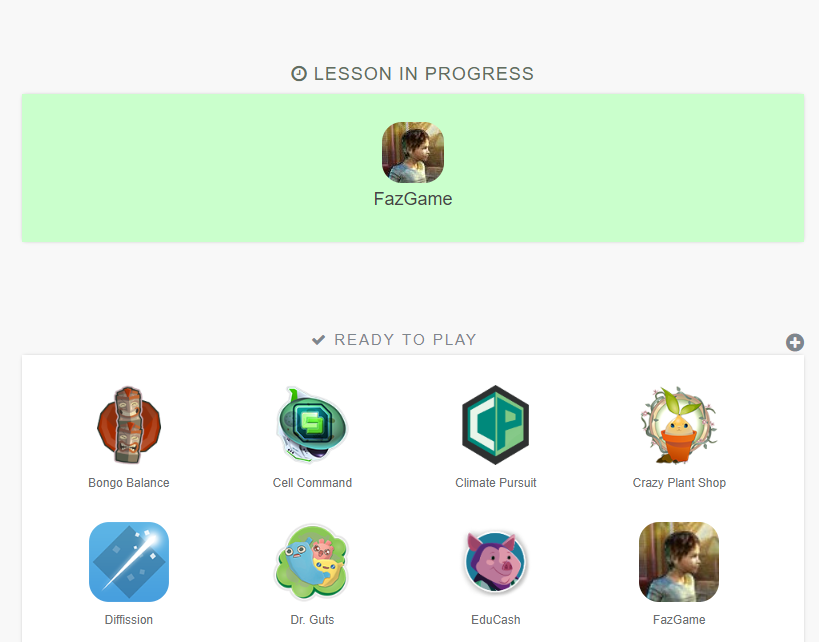
Compare to this view with no lesson started.

The intentional and unintentional learning
For example, if you use the sandbox game FazGame - where you actual make your own game it's hard to measure the intentional learning. The desk gives you statistics of the unintentional learning (21st century skills) which is knowledge good as anything - but not what you might had in your lessons plan.
Mikael from TeacherGaming explained for me:
"One way we’ve gone around this is awarding skill points for playing while a specific lesson is active. So even if we cannot say you learned about health care while you play FazGame, we might still award you points based on the theme of the lesson. That’s not really learning analytics but should represent the intentional part of learning in some capacity."